
**This is an old revision of the document!**
Table of Contents

Execute a Shell Script
How To Use
The Execute a Shell Script action executes a specified shell script, either from a file or text.
Using Keyboard Maestro Variables
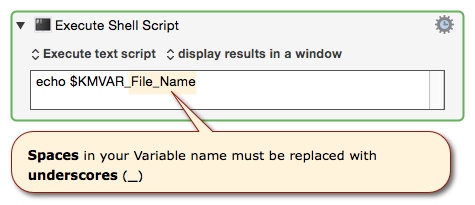
Use this format: $KMVAR_[variable_name]
where [variable_name] is the name of your Keyboard Maestro Variable,
but with spaces in the name replaced with underscores (‗)
For example: “File Name” would be formated as “$KMVAR_File_Name”.
If your variable already has underscores, you can use as is.
Action Gear
The Action (gear) menu includes the following options:
- Trim Results — removes white space from the start and end of the scripts results.
- Include Errors — include stdout and stderr results from the script.
Output of Results
The results of a shell script can be:
- Ignored.
- Displayed in a floating window.
- Displayed briefly in a Notification.
- Typed in to the current selection.
- Pasted in to the current selection.
- Saved to a variable.
- Saved to the system or a Named Clipboard.
- Asynchronously ignored — the action runs while the macro continues on.
Examples
For example, you could have a shell script date display briefly in the Notification Center every hour, or use a hot key to type the results directly into your text editor.
You can also use the clipboard by piping from pbpaste and to pbcopy.
How Scripts Are Processed
Shell scripts are executed in the background and can access variables by using environment variables.
Shells are executed in non-interactive mode (see the INVOCATION section of the bash man page). As such none of your profile scripts (like ~/.profile) will be executed. This means that custom environment variable settings will not be applied, in particular any settings for your PATH environment variable, and any settings for tool-specific environment variables like PERL5LIB). You can set these by creating a variable with “ENV_” at the start (eg ENV_PATH or ENV_PERL5LIB) and settings its value appropriately.
Execute Script From Other Apps
When you execute a shell script from other apps, like Terminal.app, the shell does NOT have access to the Keyboard Maestro Engine environment, and thus it does NOT know anything about Keyboard Maestro Variables.
In order to access Keyboard Maestro Variables in these scripts, you must use a tool like osascript.
 Note that you do NOT need to replace spaces with underscores in your Variable name in this case, since you are ultimately using AppleScript in the Shell Script.
Here is a simple example:
osascript -e 'tell application "Keyboard Maestro Engine" to get value of variable "My KM Var"'
Here is a more comprehensive example, providing error handling:
read -r -d '' theAppleScript <<'EOF'
   tell application "Keyboard Maestro Engine"
      set kmVarName to "My KM Var"
      tell variable kmVarName
         if it exists then
            return its value
         else
            return "Error → Keyboard Maestro variable '" & kmVarName & "' does not exist!"
         end if
      end tell
   end tell
EOF

osascript -e "$theAppleScript";