
Table of Contents
Execute JavaScript for Automation Action
The Execute a JavaScript For Automation action executes the specified script, either from a file or text.
Script Results
The results of the script can be:
- Ignored.
- Displayed in a floating window.
- Displayed briefly in a Notification.
- Typed in to the current selection.
- Pasted in to the current selection.
- Saved to a variable.
- Saved to the system or a Named Clipboard.
- Asynchronously ignored — the action runs while the macro continues on.
By default, errors are not included in the output, and the output is trimmed of white space. These can be adjusted in the action (gear) ⚙ menu.
Modern Syntax
In version 11.0, scripts default to Modern Syntax, which essentially wraps the script in:
- snippet.javascript
(function () {
…
})()
This helps keep your script from interacting with the web page in unexpected ways. A result of this is that you need to return values to the action using the return syntax. So a trivial action would be:
- snippet.javascript
return "Hello";
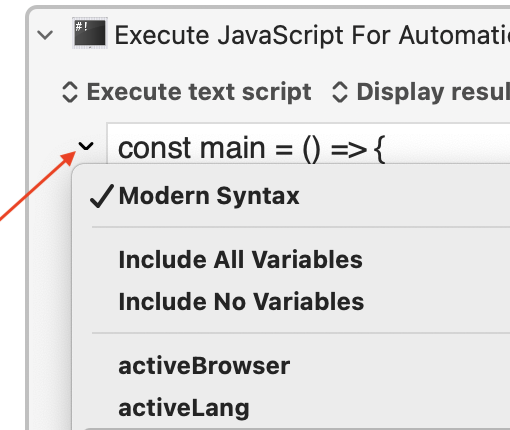
You can turn Modern Syntax on or off in the popup menu next to the script.
Using Keyboard Maestro Variables
In Modern Syntax (v11.0+), reference the variable like this:
- snippet.javascript
var v = kmvar.My_KM_Data
Alternatively, the variables are stored in the environment variables with a prefix of KMVAR_.
When accessing a variable, if its name has a space in it, replace it with an underscore.
Local and Instance variables are available, but Password variables are not.
By default, all variables are included, but you can select No Variables, or specific variables as desired using the popup menu next to the script.
Using JXA to Access Variables
You can use JXA’s ability to communicate with the Keyboard Maestro Engine to read and write variables.
- snippet.javascript
// Assumes Modern Syntax

// --- SET CURRENT APP VARIABLE NEEDED FOR DIALOGS & StandardAdditions.osax ---
var app = Application.currentApplication()
app.includeStandardAdditions = true

// --- SET KME APP VARIABLE NEEDED TO GET/SET KM VARIABLES ---
var kme = Application("Keyboard Maestro Engine");


//--- GET A KM VARIABLE ---
//    Returns empty string if it doesn't exist
var someVarNameStr = kme.getvariable("KMVarNameToGet") || 'Default Value if NOT Found';
console.log("someVarNameStr: " + someVarNameStr)

var someNewDataStr = "Text to be set to a KM var";

//--- SET A KM VARIABLE ---
//      Creates the Variable if it doesn't exist
//      Verify Variable in the KM App Preferences
kme.setvariable("KMVarNameToSet", { to: someNewDataStr });


//--- GET TEXT ON CLIPBOARD ---
var clipboardStr = app.theClipboard()
console.log("clipboardStr: " + clipboardStr)

var someDataStr = "Example text to put on clipboard"

//--- COPY TO CLIPBOARD ---
//      Verify using KM Clipboard History Viewer
app.setTheClipboardTo(someDataStr)
Local & Instance Variables
Keyboard Maestro has Local and Instance Variables. In order to get or set these, you need to have the instance information of the macro and use different parameters in the JXA get/set methods.
- snippet.javascript
var app = Application.currentApplication()
app.includeStandardAdditions = true

var kmInst = app.systemAttribute("KMINSTANCE");
var kmeApp = Application("Keyboard Maestro Engine")

var myLocalVar = kmeApp.getvariable("Local__MyVar",  {instance: kmInst});
kmeApp.setvariable("Local__FromJXA", {instance: kmInst, to: "Set in JXA Script"})
Note that this method is only useful if you are not using Modern Syntax (since you can access the local variables directly through the kmvar hash), and you need the instance information by some means (passed as an environment variable in the case of the Execute a JavaScript For Automation action, but in other cases external to the Keyboard Maestro Engine you would need some other method of getting it).
Displaying User Dialogs
JavaScript For Automation scripts are executed in the background via osascript. In order to have user interaction in the script, you will need to use a reference to the “current application”. For example:
- snippet.javascript
// --- SET CURRENT APP VARIABLE NEEDED FOR DIALOGS & StandardAdditions.osax ---
var app = Application.currentApplication()
app.includeStandardAdditions = true

var MsgStr  = "This is an example of JXA Display Dialog"
var TitleStr  = "Dialog Title"
var AnswerStr = "NONE"

app.beep()
var oAns = app.displayDialog(MsgStr,
            {
              withTitle:      TitleStr
              ,withIcon:      "caution"
              ,buttons:       ["Cancel","OK"]
              ,defaultButton: "OK"
              ,cancelButton:  "Cancel"
            })

//--- Script is stopped here if user chooses "Cancel" ---

var BtnStr = oAns.buttonReturned

return ("Btn: " + BtnStr)