
action:Get_File_Attribute
**This is an old revision of the document!**
Table of Contents
Get File Attribute Action
The Get File Attribute action returns the specified attribute for the specified file to a Variable.
How To Use
Click the File Chooser button to the right of the action to select an existing file on disk. Option-click on the File Chooser button to show the currently selected file in the Finder (assuming it exists already).
The result of the action is displayed at the bottom of the action.
Using Alias and SymLink Files
If you select an Alias or SymLink file using the File Chooser it will return the target rather than the actual path.
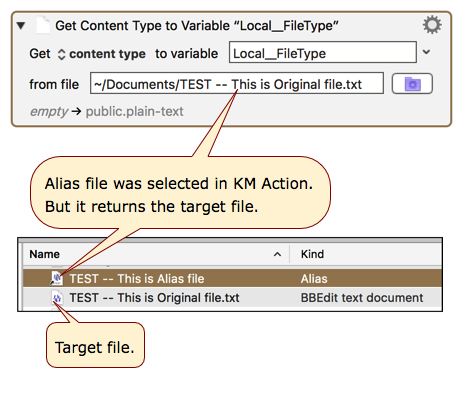
If you want to determine if the Finder Item is an Alias or SymLink, you can use this AppleScript, which will return “Alias” if the Item is either an Alias or SymLink.
- snippet.applescript
tell application "Finder"
  set theSel to the selection
  set theItem to item 1 of theSel
  set itemKindStr to (kind of theItem) as text
end tell

return itemKindStr
-->Alias
File attributes available
- file type (r/o).
- file size (r/o).
- creation date.
- modification date.
- added date.
- last used date.
- downloaded date.
- where from.
- owner name (r/o).
- owner id (r/o).
- group name.
- group id.
- POSIX permissions.
- extension hidden.
- invisible.
- HFS creator code.
- HFS type code.
- content type.
- content kind.
- tags (set, add, remove or toggle).
- comment.
- parent path (r/o).
- file name (r/o).
- base name (r/o).
- extension (r/o).
Addition File Attributes
There are several more attributes available using the Filter Action.
- Get or delete the last path component or the path extension.
- Get the basename of the path (ie the name without directory or extension).
- Expand Path to full page, replacing tilde (~) in the path.
- Resolve symlinks, or standardize the path.
See Also
Actions
Forum
action/Get_File_Attribute.1553195588.txt.gz · Last modified: by JMichaelTX