
**This is an old revision of the document!**
Table of Contents
Prompt For User Input Action
Prompt For User Input allows you to design a form that will ask for user input, storing the results in Keyboard Maestro Variables.
You can prompt for variables with text, checkbox, popup menu, or password fields.
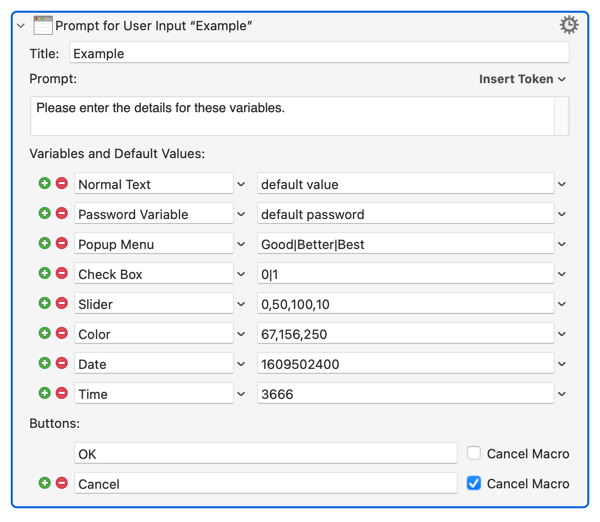
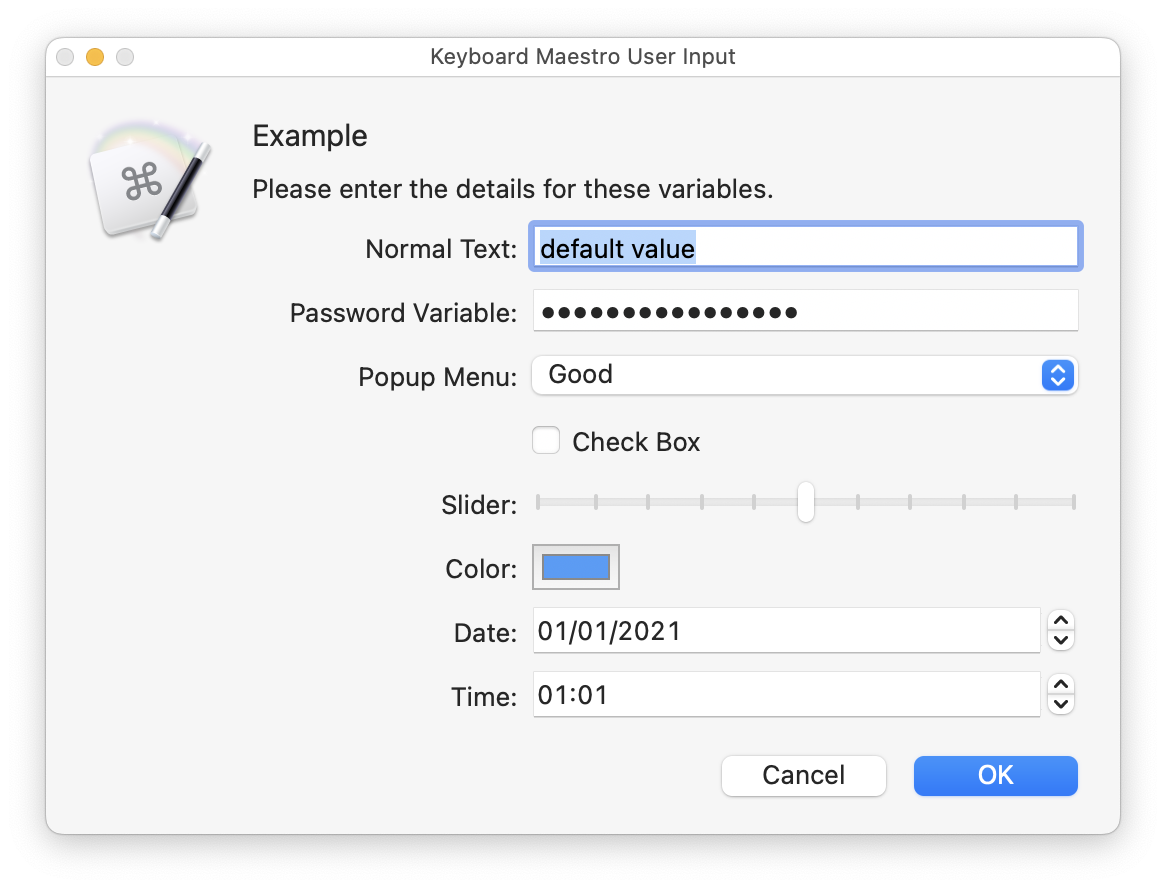
This action produces this Display:
Form Fields
The Prompt for User Input form (hereafter called “form”) provides form fields for the following:
| Field | Type | Purpose/Use |
|---|---|---|
| Form Title | Display Only | Identify the Main Purpose of the Form |
| Prompt | Display only | Optionally provide instructions and/or display Variables |
| Keyboard Maestro Variables | Display/Edit | Optionally allow you to input variable values. Variables may be displayed as Text (Single Line, or Password), Popup Menu, or Checkbox, Slider (v10.0+), Color (v10.0+), Date or Time or Date&Time (v10.0+) |
| Buttons | Standard Mac | Allow you to accept, cancel, or provide other responses you may define |
Form Title
The Form Title is plain text, provided to communicate the basic purpose, or the name of the macro, to the user. It may contain any of the Keyboard Maestro Tokens. It is for display only, and cannot be changed by the user when the form is displayed.
Prompt
The Prompt is plain text, provided to provide instructions or data to the user. It may contain any of the Keyboard Maestro Tokens. It is for display only, and cannot be changed by the user when the form is displayed.
Variables
The Form may contain zero or more Variable lines, with each line providing two form fields:
- Keyboard Maestro Variable Name (for display only)
- Value of the Variable
- May optionally have a default value
- Can be edited by the User
Each Variable value may be displayed as any of the following:
- Text (single-line)
- Popup Menu
- Checkbox (value must be either “0” or “1”)
- Password Field
- If the Variable name starts or ends with “Password” or “PW”, it will be displayed in a password field (typed characters are shown as bullets).
Text Field
Popup Field
Simply enter a default value with the Popup Choices separated by a bar (|), like this: “Good|Better|Best”
- Then a popup menu will be used.
- The first value in the list of choices will be assigned to the Variable, unless the user chooses a different Popup Choice.
- You can assign a different default value for the Popup, by entering that value as the first choice listed (For example, if you would like “Better” to be the default Popup value, then use “
Better|Good|Better|Best”).
Using a Variable for Popup Choices
To use a Variable for the popup choices, see:
Using a Dash ("`-`") to Separate Choices
If a popup menu item is a dash (-), then a separator is displayed. For example, “Good|Better|Best|-|Terrible”
How to Store a Different Value than Displayed
Sometimes you may want to display a “friendly” value as the default value, but store a different value (like a code) in the actual Variable. You can do this by using a prefix to the default value.
If a popup menu item starts with a prefix followed by two underscores, then the prefix will be used as the variable value, while the latter part will be displayed in the menu.
For example “B__Good|F__Fail|C__OK|B__Good|A__Excellent” would be shown as:
Fail
OK
Good  (selected by default)
Excellent
but would set the variable to A, B, C,or F as appropriate.
How to Use a Variable for the Popup Choices
- Sometimes you might like to use a Keyboard Maestro Variable to store the list of Popup Choices, and then use this Variable in the Prompt for User Input Action. This can be done simply starting the default value for the Popup with a vertical bar (
|). - If the Popup default value starts with a bar (|), then the Variable (which contains choices separated by
|) will be expanded and evaluated before the Prompt is displayed, thus showing the choices from the Variable.
Otherwise, the entry is separated by bar first, and then token expansion is applied to each field, so that fields may contain bars, for example, “This|That|%Variable%One Entry%”.
How to Hide a Variable Prefix in the Prompt
It is a good idea to have a common prefix in all of the variables used by the same macro. This clearly identifies the macro that uses these variables, and groups them together in the Variables section of the Keyboard Maestro Preferences. But you may not want to expose this prefix to the user running the macro.
So, you can hide the prefix if the variable name starts with a prefix followed by two underscores. Then the label will show only the latter part of the variable name.
For example, if you enter “MyMacro__Text Message” in the variable name field of the Prompt for User Input action:
- It will display a label of “
Text Message”: - But the actual variable name that is set will be just as you entered it: “
MyMacro__Text Message”
Checkbox Field
If the popup menu would contain only “0” and “1”, then a checkbox is used (so for example, “0|1“ or “1|0”, depending on the desired default).
Buttons
By default, the Prompt for User Input Action comes with two buttons:

- Responds to shortcut ⏎ (RETURN)
- Closes the Prompt
- Flows proceeds to next Action

- Responds to shortcuts of either ⎋ (ESCAPE), or ⌘. (COMMAND-PERIOD)
- Closes the Prompt
- Cancels the Macro
Optional Buttons Can be Assigned Shortcut Keys
You can optionally assign a shortcut key by applying a suffix to the Button Name in the form of /«character», which will cause the Button to respond to a keystroke of ⌘/«character»
| Suffix | Button Responds to Shortcut Key of: |
|---|---|
/. | ⎋ (ESCAPE) key. |
/ | ⏎ (RETURN) key. |
/H | ⌘H keystroke (as an example). (The ⌘ key is not needed IF there are not any text fields in the Prompt User dialog) |
Result Button
The %PromptButton% token (v8+) is set to the name of the button pressed, and can be used in actions later in this instance like any other text token. The deprecated Result Button variable is also set to the name of the button pressed.
How Buttons are Processed
- The first button (from the top) has a default key of ⏎ (RETURN), unless you have assigned the RETURN response to another button using “/” at the end of a button name.
- The second button has a default key of either ⎋ (ESCAPE), or ⌘. (COMMAND-PERIOD), unless you have turned off canceling the macro for that button or assigned the ESCAPE response to another button using “/.” at the end of a button name.
- Any button can Cancel the macro if the “Cancel Macro” checkbox is checked for it.
- Other buttons have no default key.
- Whatever button has the RETURN response will be the Default button, and will be highlighted in blue appropriately by the system.
- If you have the system preference “Use keyboard navigation to move focus between controls” enabled, the button shown with a colored outline (usually blue) can be chosen/activated by pressing the SPACE key.
Guidelines for Good Button UI
- The default button should be the “OK” button, the one that performs the normal behaviour.
- The default button should be rightmost.
- The left most button should be “Cancel”.
- Other buttons may vary.
- If the normal behaviour is significantly dangerous, then it may be appropriate for it to not be the default button, or for there to be no default button.
“normal behaviour” here is defined as doing what the user just asked to do.
A consequence of all of this is that if you have a second button in the Prompt For User Input action, and it does not cancel the macro, then you should definitely give it some other key, or disable it with “/-”.
An update is planned so that if the first button has the Cancel Macro flag, then it is not the default (by default), and if the second button does not have the Cancel Macro flag, then it does not get the Escape/Command-, key (by default).
Notes
Note that the system will not allow Keyboard Maestro Engine to see keys typed in its own windows so the Typed String triggers will not work within Keyboard Maestro Engine windows.
Note that the system really really wants a “default” button, and if you do not give it one, it will choose one for you.
See Also
Actions
- Alert action
- Prompt With List action
- Prompt for File action
- Prompt for Screen Rectangle action
- Custom HTML Prompt action
- Show Palette of Macros action
- Get Touch Bar Selection action
Tokens
- %AlertButton% token
- %PromptButton% token
- %HTMLResult% token