
**This is an old revision of the document!**
Table of Contents
Tokens
Definition
Tokens in Keyboard Maestro represent placeholders for information that will replace it in the text. For example, the %SafariTitle% token returns the title of the current Safari tab. So the value of the Token will be determined at execution time. All tokens return a text value, even if the source data was some other data type.
Tokens allow you to add textual information to token text fields. You can insert tokens into a field using the Insert Token popup near the field or by choosing Insert Token from the Edit menu. You can also start typing a token and use text completion to complete the token.
Text Processing
You can use the following special formats to process text or to return non-printing characters:
- Convert Case of Text
- Use these special characters:
\U \L \E \u \l - For details, see Text Case Conversions
- Return Non-Printing Characters
- Convert:
\a \b \e \f \t \r \n
To:
- Convert Hex Code to Unicode Characters
- Enter Hex Codes in this format:
%NN%or%NNNN%
- Escape Special Characters
- Use
%%to return a single%as plain text - Use
\\to return a single\as plain text
List of Tokens
How To Use
Keyboard Maestro has a wide variety of tokens. Tokens allow you to add information to text fields in an Action. You can insert tokens into a field using the Insert Token popup near the field.
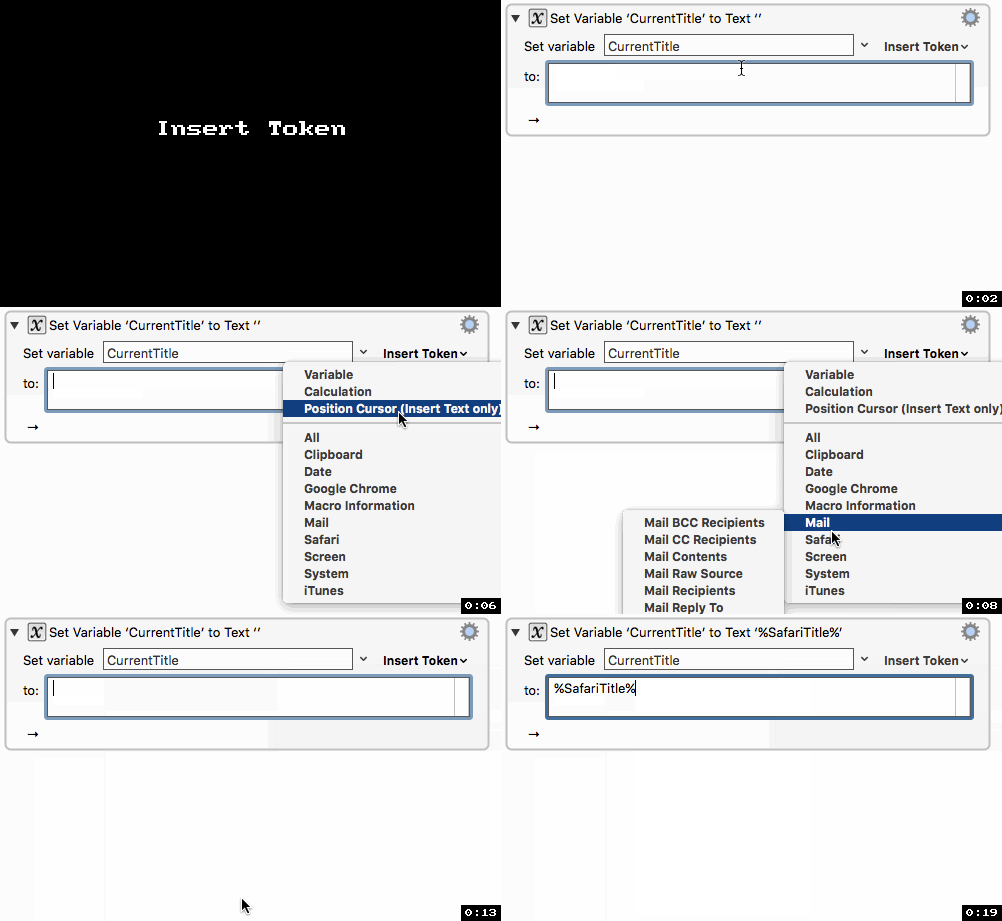
Most fields that contain text (ie, not just numbers) can include tokens.
Action fields that accept tokens also process %NN% or %NNNN% as arbitrary hex unicode characters (eg %41% is an A), and (except for regular expression fields) process backslashed characters \a,\b,\e,\f,\t,\r,\n (bell,backspace,escape,form feed,tab,return,line feed).
To include a percent (%) in your text, simply double the percent (%%). To include a backslash (\) in your text, double the backslash (\\).